Software Installation on Windows 11
Download the Anaconda GUI installer for Python 3. Start the installation by double clicking on the installer.
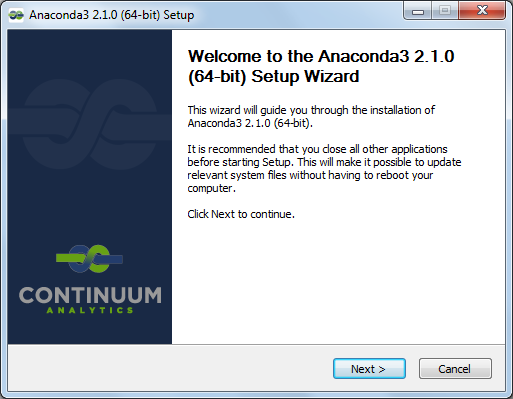
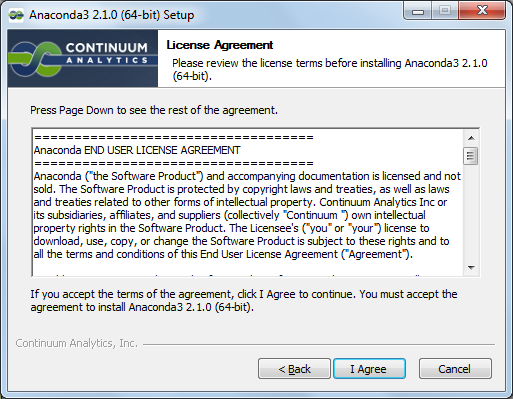
Click Next and accept the License Agreement on the next screen:
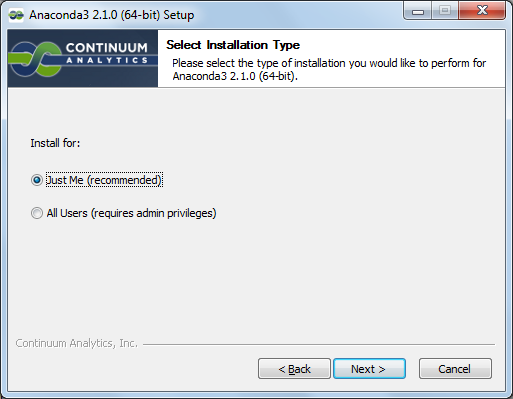
You can choose to install the distribution either for your user only or for all users using this computer. We will go with the former:
Next, choose the folder where you want Anaconda to install the programs:
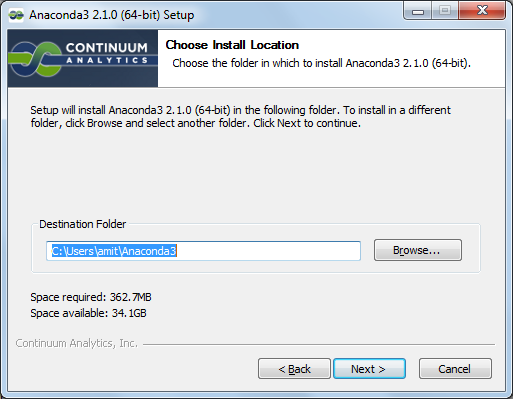
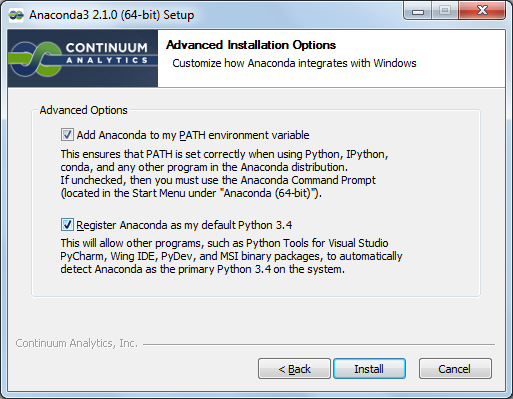
Click on “Install” to start the installation:
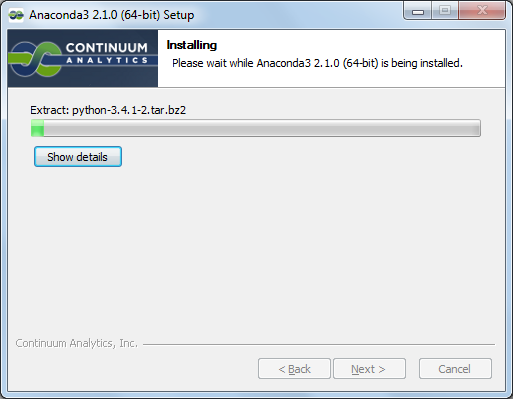
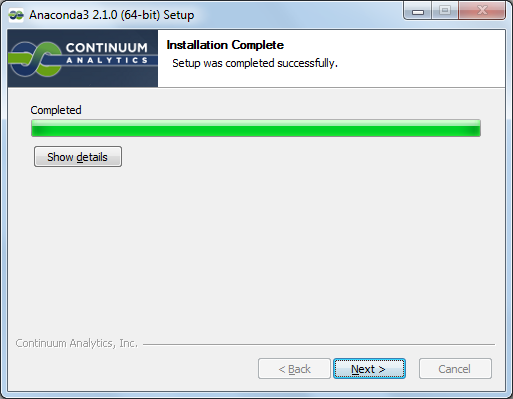
Click on “Finish” to complete the installation.
Open the Anaconda Windows Powershell command window and carry out the following steps.
Installing sympy
Install sympy using the command conda install sympy==1.14.0. This will install sympy to the version 1.14.0.
Installing matplotlib-venn
To install matplotlib-venn, use the command pip install matplotlib-venn.
Your computer is now setup to run all the programs.
Starting Python shell
Open a windows command prompt and type idle to start the IDLE shell and examine the versions of the different third party libraries we will be using: